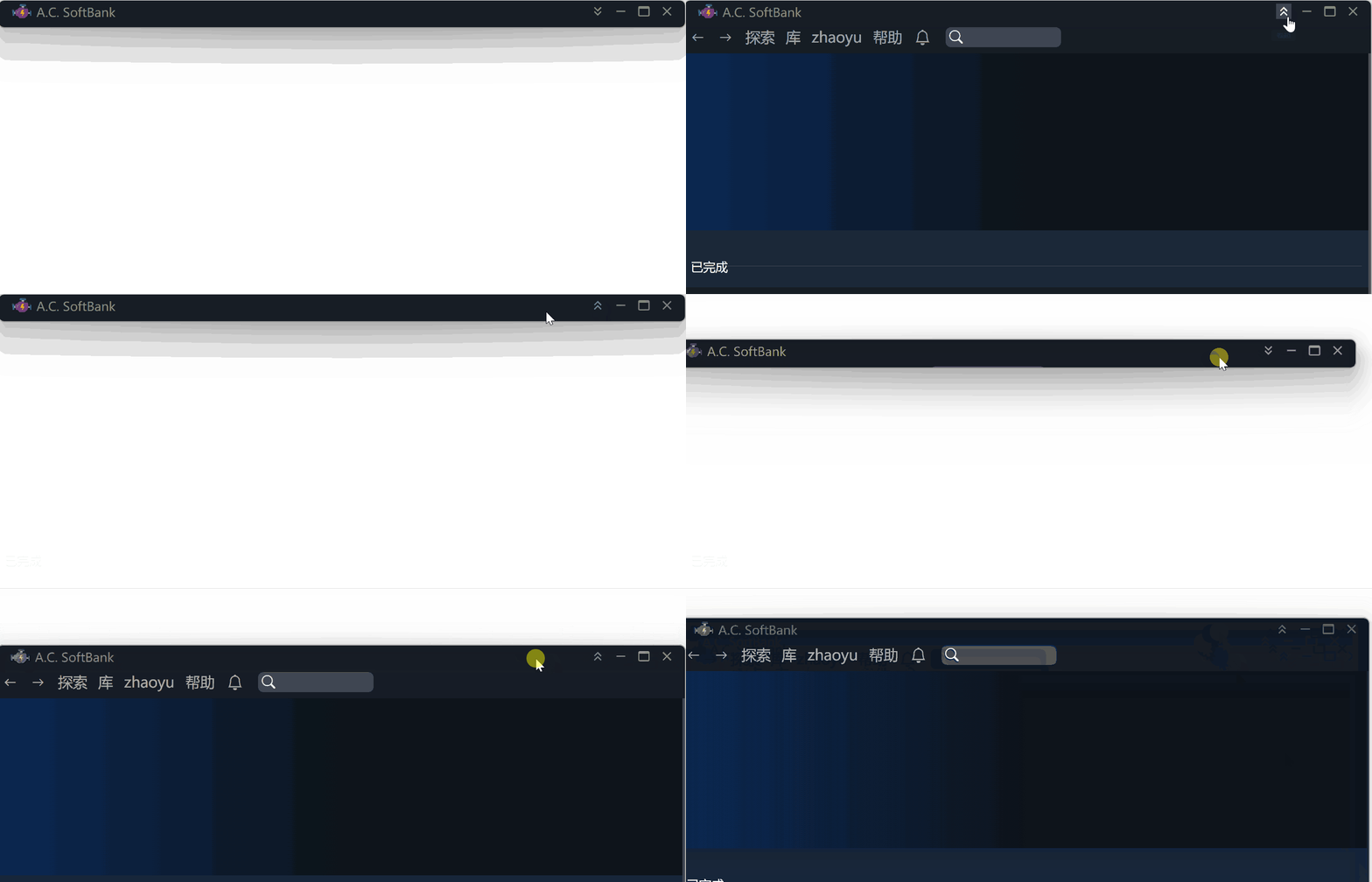
本文将演示如何在 Electron 中快速实现一个标题栏,可以卷起,拖动,并带你进一步了解 Electron 的 bug。
隐藏默认标题栏
在你创建 BrowserWindow 的方法中,指定以下参数:
function createWindow() {
  if (prod) Menu.setApplicationMenu(null);
  mainWindow = new BrowserWindow({
    titleBarStyle: dev ? 'default' : 'hiddenInset',
    titleBarOverlay: true,
    frame: false,
    // ...
编写自己的标题栏
现在默认的标题栏已经消失了,你应该编写一个 div,作为自己的标题栏。这个 div 和其它 div 没什么两样,除了它要支持以下三种东西:
- 可以拖动
- 可以卷起
- 有一个红绿灯组件(卷起/放下,最大化,最小化,关闭)
 <div className="title-bar">
  <div className="logo-and-name"><img src="public/assets/icon.ico" alt="logo" />My Application</div>
  <div className="traffic-light">
    <MinMaxClose /> <!-- MinMaxClose 你可以自己实现,四个按钮,卷起/放下,最大化,最小化,关闭 -->
  </div>
</div>
拖动
编写一个 Drag 组件,它的所有 children 都可以拖动。
import * as React from "react";
import { HTMLAttributes } from "react";
import nconsole from "_rutils/nconsole";

interface DragProps extends HTMLAttributes<HTMLDivElement> {
  children: React.ReactNode;
}

function Drag(props: DragProps) {
  const { children, ...rest } = props;
  const stopMove = () => {
    window.ipcAPI?.initMoveWindow(false);
  };

  const startMove = (e: React.SyntheticEvent<HTMLDivElement>) => {
    let elementDraggable = true;

    if (e.target instanceof HTMLInputElement // 输入框,按钮等不能拖动,可以自由添加不希望拖动的组件
      || e.target instanceof HTMLButtonElement
      || e.target instanceof HTMLTextAreaElement
    ) {
      elementDraggable = false;
    }

    if (elementDraggable) {
      window.ipcAPI?.initMoveWindow(true);
      window.ipcAPI?.moveWindow();
    }
  };

  return (
    <div
      {...rest}
      onMouseDown={(e) => startMove(e)}
      onMouseUp={(e) => stopMove()}
    >
      { children }
    </div>
  );
}

export default Drag;这个window.ipcAPI?.initMoveWindow(true); window.ipcAPI?.moveWindow(); 是什么呢?
function initMoveWindow(moveState: boolean) {
  ipcRenderer.send('window-move-init', moveState);
}

function moveWindow() {
  ipcRenderer.send('window-move');
}
使用 ipcMain 来控制窗口移动
来看看 window-move-init and window-move 做了什么。
window-move-init会在你点击标题栏的瞬间调用,它告诉 electron:“准备移动!”window-move会在你鼠标移动的每一帧调用
把以下代码放到你的 main.ts 或者其它能够调用 ipcMain.on 的位置。
let winStartPosition = { x: 0, y: 0 };
let mouseStartPosition = { x: 0, y: 0 };
let size = [0, 0];
let ready2move = false;
let movingInterval: string | number | NodeJS.Timeout | null | undefined;

ipcMain.on("window-move-init", (e, moveState: boolean) => {
  if (moveState) {
    const winPosition = win.getPosition();
    winStartPosition = { x: winPosition[0], y: winPosition[1] };
    mouseStartPosition = screen.getCursorScreenPoint();
    size = win.getSize();
  } else {
    if (movingInterval) clearInterval(movingInterval);
    movingInterval = null;
  }
  ready2move = moveState;
});

ipcMain.on("window-move", (e) => {
  if (ready2move) {
    if (movingInterval) {
      clearInterval(movingInterval);
    }
    // 使用 setInterval 是为了解决鼠标移动太快离开窗口,导致 mouseMove 事件丢失的问题
    movingInterval = setInterval(() => {
      // 实时更新位置
      const cursorPosition = screen.getCursorScreenPoint();
      const x = winStartPosition.x + cursorPosition.x - mouseStartPosition.x;
      const y = winStartPosition.y + cursorPosition.y - mouseStartPosition.y;
      // 你必须用 setBounds,而不能用 setPosition,否则窗口会慢慢变大,这就是我说的 electron 的 bug,至今不修复
      win.setBounds({ // win 就是你的 mainWindow,本示例中没有体现
        x,
        y,
        width: size[0],
        height: size[1],
      });
    }, 1); // 1ms 并不会导致你的 app 性能变慢
  } else {
    if (movingInterval) clearInterval(movingInterval);
    movingInterval = null;
  }
});
最终为了防止出现不可预料的问题,应该在点击右键或者按 ESC 的时候,取消拖动
export function APP() {
  useEffect(() => {
    // 某些异常场合按 ESC 停止拖动
    const dragFallBack = (e: KeyboardEvent) => {
      if (e.key === "Escape") {
        window.ipcAPI?.initMoveWindow(false);
      }
    };
    window.addEventListener("keydown", dragFallBack);
    return () => {
      window.removeEventListener("keydown", dragFallBack);
    };
  }, []);

  return (
     <section style={{ height: "100%" }} onContextMenu={() => window.ipcAPI?.initMoveWindow(false)}>
  )
}
好了,现在试试看拖动效果吧!
卷起
卷起比较简单,和拖动同理,也是利用 ipcMain 来控制窗口。不同的是,卷起放下使用同一个按钮,因此你应该记录当前是卷起或者放下。
renderer
<div className="traffic-light"> <!-- 在标题栏中增加卷起/放下,最大化/最小化,关闭的逻辑 -->
  <MinMaxClose
    scrollButtonStatus={trafficLightScrollButtonStatus}
    onScrollClick={() => {
      window.ipcAPI?.titleScrollToggle();
    }}
    onMinimize={() => {
      window.ipcAPI?.mainWindowControl('minimize');
    }}
    onMaximize={() => window.ipcAPI?.mainWindowControl('maximize')}
    onClose={() => alertAndClose()}
  />
</div>
ipcMain 的实现
let sizeForScroll = [0, 0];
let alreadyScrollUp = false;

ipcMain.handle("is-window-maximized", (e) => {
  return win.isMaximized();
});

ipcMain.handle("is-window-scrolled-up", (e) => {
  return win.getSize()[1] <= 50;
});

const scroll = (method: string) => {
  if (method === "up") {
    if (alreadyScrollUp) {
      return;
    }
    sizeForScroll = win.getSize();
    // logger.log("current size: " + sizeForScroll[0] + ", " + sizeForScroll[1]);
    win.setSize(sizeForScroll[0], titleBarHeight, true);
    alreadyScrollUp = true;
    return;
  }
  alreadyScrollUp = false;
  // 使用当前宽度,和卷起前的高度
  win.setSize(win.getSize()[0], sizeForScroll[1], true);
};

// 滚轮调用,会瞬间多次调用
ipcMain.on("title-scroll", (e, method: string) => {
  scroll(method);
});

// 按钮调用
ipcMain.on("title-scroll-toggle", (e) => {
  if (alreadyScrollUp) {
    // 放下
    alreadyScrollUp = false;
    // 使用当前宽度,和卷起前的高度
    win.setSize(win.getSize()[0], sizeForScroll[1], true);
    return;
  }
  // 卷起
  sizeForScroll = win.getSize();
  // logger.log("current size: " + sizeForScroll[0] + ", " + sizeForScroll[1]);
  win.setSize(sizeForScroll[0], titleBarHeight, true);
  alreadyScrollUp = true;
});
完成
好了。以上并不是完整的代码,但是它包含了一种解决问题的思路。到此,你应该可以实现封面图中的效果了。